 Pawbell
How to use Pawbell
One app for shop owners, groomers and pet parents. Choose who you are the first time you open it, then follow the steps below.
The app itself is in Thai. Button names are shown here in Thai as you'll see them, with the English meaning.
🏪 Shop owner / Manager
Set it up once, then it's a few taps a day
1. Create your shop
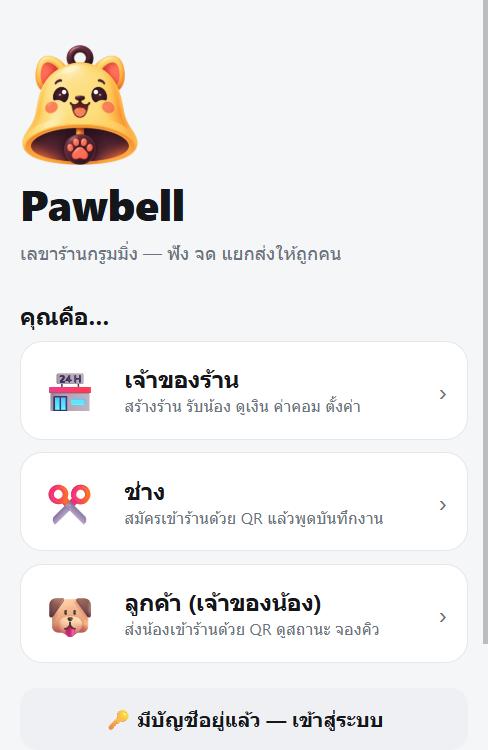
- Open the app and choose เจ้าของร้าน (shop owner)
- Enter the shop name, your name and your groomers' names (you can add more later)
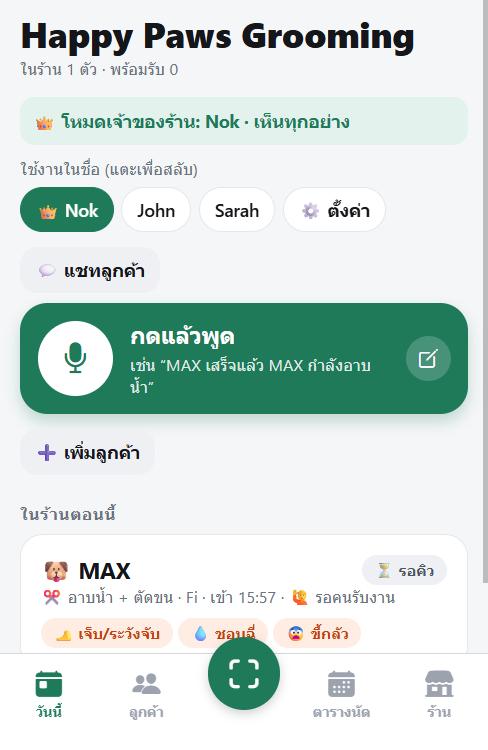
- You land on วันนี้ (Today) — the shop's home screen, showing every pet in the shop right now
💡 Want to try first? On the first screen tap “ลองด้วยข้อมูลตัวอย่าง” (try with sample data: MAX, BOB, LUNA)
 1
2. Add groomers
Groomers with their own phone (recommended)
- The groomer installs the app, chooses ช่าง (groomer), enters name, positions and the animals they work with → gets a QR
- You tap 📷 scan in the middle of the bottom bar and scan their QR
- They're in your shop and see its jobs on their own phone
Groomers without a phone — add them under ร้าน → ⚙️ ตั้งค่าร้าน → เพิ่มพนักงาน (Shop → Settings → Add staff) and share the shop phone. Tap a name under “ใช้งานในชื่อ” (using as) to switch who's using it; set a PIN so nobody taps in as someone else.
💡 Managers: add them as a groomer first, then set their position to Manager in shop settings — a Manager handles prices and payments like the owner
3. Shop settings (ร้าน → ⚙️ ตั้งค่าร้าน)
- Shop info — name and shop phone (customers only see it when they press 🚨 emergency)
- Opening hours / days off and time per pet — keeps bookings from clashing
- Services — bath + groom, bath only, day care, boarding
- Jobs you offer — nails, ears, glands, spa… switch off what you don't do
- 💳 Payments — your PromptPay ID (phone / ID card / tax ID) and account name; the app makes a QR for each amount
- When to pay — turn on “pay before pick-up” if every pet must be paid for first
- What customers see — show prices to customers or not
- Commission — a standard rate per job, or per person if rates differ
- Promotions / packages — e.g. 10% off, 10th visit free, birthday
- 📄 Consent — have customers accept your shop terms before service
4. Check pets in
A. The customer has the app
- The customer opens their drop-off QR
- Tap 📷 scan → scan it → the pet's warnings pop up → tap รับเข้าร้าน (check in)
B. No app / the shop's own pet / a staff member's pet
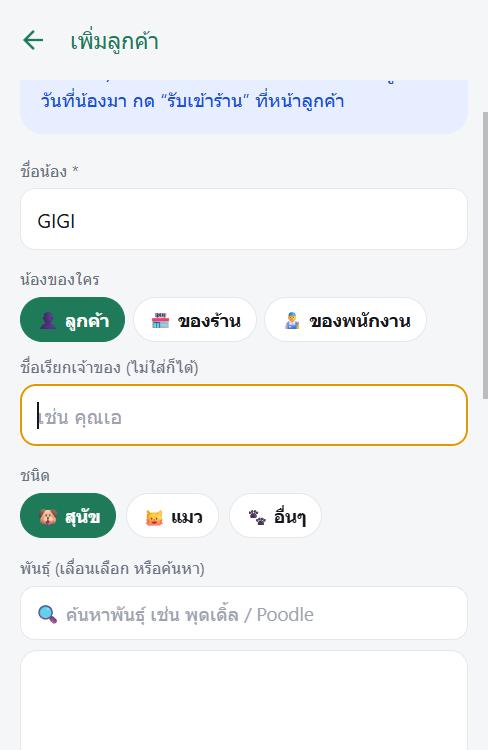
- On Today tap ➕ เพิ่มลูกค้า (add customer) → pet name, owner, breed (or tap the mic and say “Gigi, Pomeranian, Khun A's”) → tap เพิ่มลูกค้า
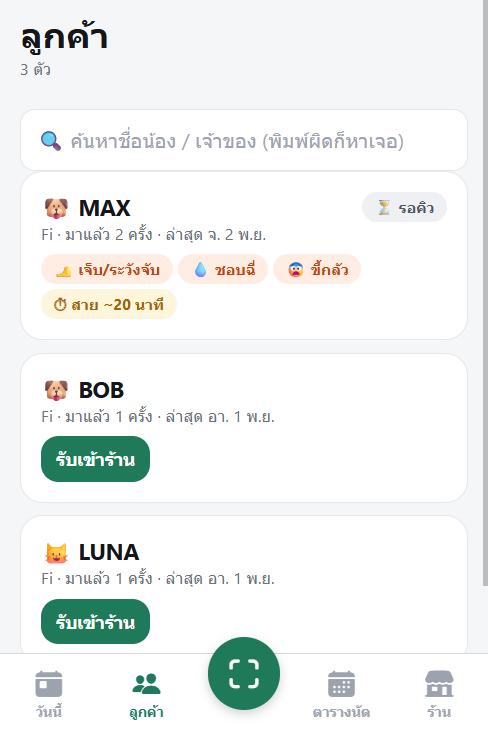
- On the day the pet comes, open the ลูกค้า (Customers) tab → search the name → tap รับเข้าร้าน → choose the service
- Next time, tap “รับเข้าร้าน” on the same name — the history continues on the same pet, no need to add it again
🔍 The customer search forgives typos and matches Thai and English spellings (“โมโม่” finds MOMO). Typing a name that already exists on the add screen warns you before you add it twice.
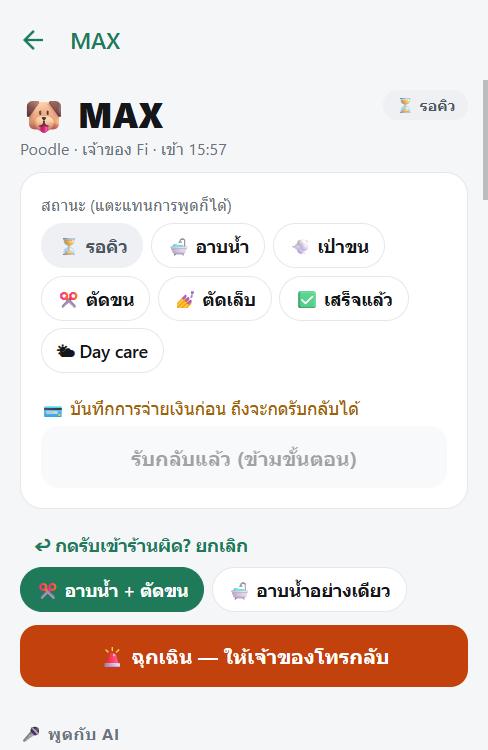
↩︎ Checked in by mistake? Open the pet's job and tap “กดรับเข้าร้านผิด? ยกเลิก” (before any work or payment). Customer installed the app later? Tap “📲 เคลมเข้าแอปลูกค้า” and scan their QR — the histories merge.
 12
 12
 12
5. Talk instead of typing
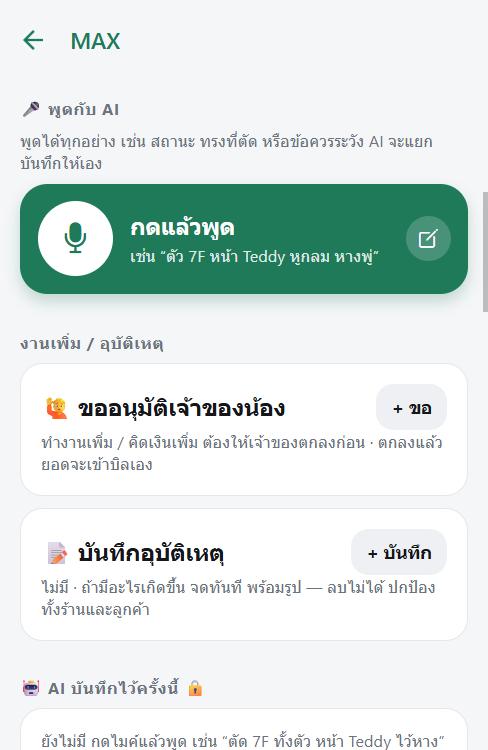
Tap 🎤 กดแล้วพูด (tap and talk) on Today or in a pet's job and speak as if to an assistant — several pets in one go is fine. The app shows a summary to confirm (✓ / ✗) before saving. It understands Thai mixed with English grooming terms.
💡 Money, moving bookings and assigning work are for the owner / Manager only — when a groomer says it, it goes to the owner to decide. If two pets have similar names, the app shows buttons to pick the right one.
1236. Extra work / incidents / emergencies
- Paid extra work (e.g. dematting +100) — in the job tap + ขอ (request); the customer approves in the app, or if they answer by phone tap 📞 ตกลงแล้ว / ไม่ตกลง (agreed / declined)
- Incidents (e.g. a quicked nail) — record it; the customer sees and acknowledges it, and it can't be deleted
- 🚨 Emergency — asks the owner to call back right away
 12
 12
7. Payments
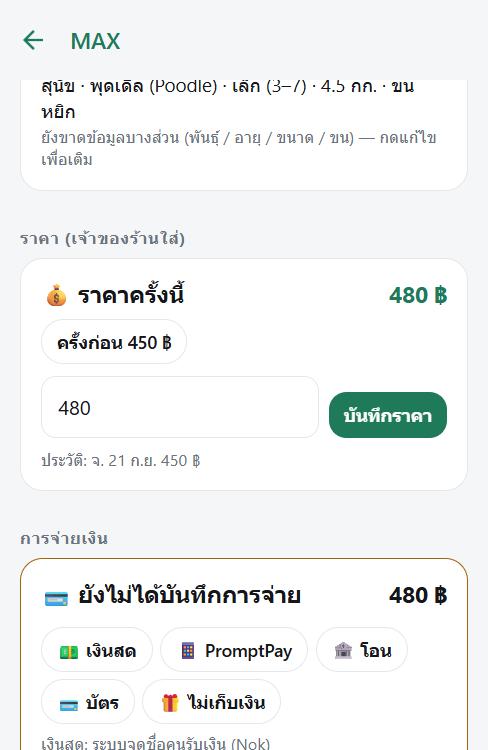
- Enter the price in the job (or say it) — several pets of one owner become one bill
- The customer scans PromptPay in the app and attaches the slip, or pays cash / transfer at the counter
- Slip: check your bank app that the money really arrived, then tap ✅ เงินเข้าแล้ว (money received). The app warns if a slip was already used.
- Cash: tap บันทึกว่าได้รับเงิน (record payment) · free of charge (shop's pet / redo): “บันทึกไม่เก็บเงิน” with a reason
- When paid, tap 🏠 ลูกค้ารับกลับแล้ว (picked up)
💡 Deposits are taken off what's left to collect · tips stay outside the bill and notify the groomer · wrong price? “ยกเลิกการจ่าย” (void payment) with a reason — the history is kept
 12
8. Bookings (ตารางนัด tab)
- New requests are under รอยืนยัน (to confirm) — pick a groomer and confirm, or send the customer a new time
- Customer reschedule requests and groomer time-change requests are answered on the same screen
- Past the time and no show? Tap ❌ ไม่มา (no-show) · the app remembers who's usually late and tells the groomer
9. Customer chat
On Today tap 💬 แชทลูกค้า — the AI works out which pet a message is about and passes it to the groomer on that pet. The shop never sees the customer's phone number.
10. Reports, commission, cash close
- ร้าน → 📊 รายงาน (Shop → Reports) — income, pets, new customers, jobs by type, bookings, incidents
- Commission — from “who did what” in each job (set in the job, or by voice)
- 💵 Close today's cash — enter what's in the drawer; the app shows how much is short or over
11. Keep your data (important)
Shop → settings → 🔒 ผูกบัญชีด้วยอีเมล (link an email) → enter the 6-digit code from the email. On a new phone, open the app and tap “🔑 มีบัญชีอยู่แล้ว — เข้าสู่ระบบ” (I have an account — sign in) and the shop comes back.
✂️ Groomer
Hands busy? Just talk
1. Join the shop
- Install the app and choose ช่าง (groomer)
- Enter your name, positions (more than one is fine) and the animals you work with → you get a QR
- The shop owner opens the app → 📷 scan → scans your QR → you're in
💡 Groomers see only the pets they work on or are assigned · prices and payments are the owner's job
2. Before you start
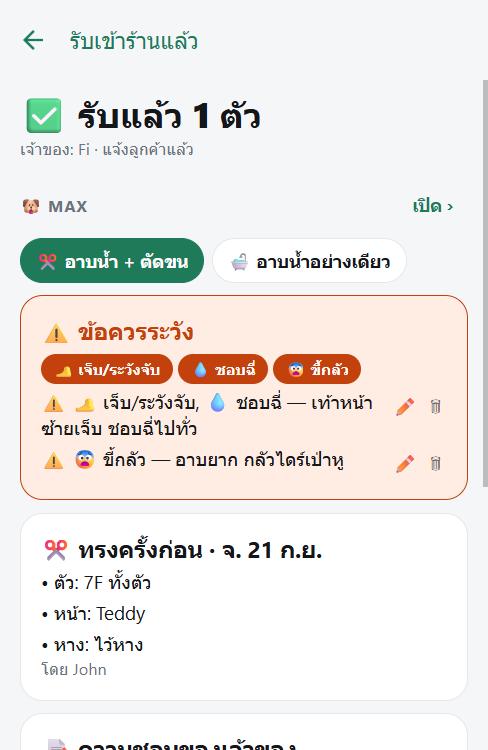
- Open the pet's job to see ⚠️ warnings (bites / pain / fearful), the last cut with photos and the owner's preferences
- “ใครทำอะไร” (who does what) — take the jobs you'll do (bath / clipper / scissor / nails…); it's used for commission
- Notes from the customer (“face a bit shorter please”) show as 🔔 — tap รับทราบ (got it) so they know you saw it
 12
3. Talk to record
Tap 🎤 กดแล้วพูด in the job or on Today — Thai, English and grooming slang are all fine
💡 Forgot something? Finished jobs still take a “บันทึกย้อนหลัง” (note after the fact) · attach photos of your work; customers only see the ones the shop shares
114. Extra work / incidents / emergency
- Something extra to do → say it or request it; the owner sends it to the customer to approve
- The pet got hurt / bleeding → record an incident truthfully
- Panting, seizure, not coping → 🚨 emergency so the owner calls back now · a person bitten in the shop: tell the shop owner (it isn't the pet's emergency)
5. My bookings (ตารางนัด tab)
See bookings given to you and tap ✅ รับทราบ (got it) · can't make it? Tap 🔄 ขอเปลี่ยนเวลา (ask for another time) and pick when you're free — the owner decides
6. Commission and tips
ร้าน (Shop) tab → “ค่าคอมของ (your name)” shows this month's total · tips arrive as a 💝 notification · you can ask for an advance in the app
🐶 Pet parent
No sign-up, and the shop never sees your number
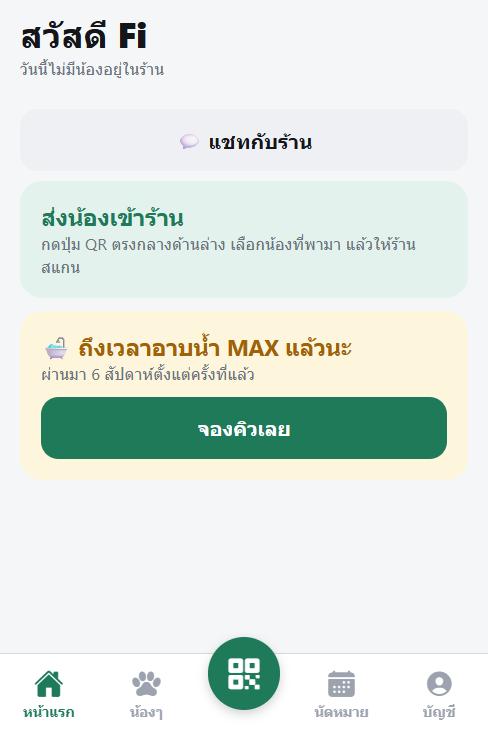
1. Get started
- Install the app, choose ลูกค้า (เจ้าของน้อง) (customer) and enter your name and phone (shops can't see it)
- น้องๆ (Pets) tab → + เพิ่มสัตว์เลี้ยง (add pet): name, breed, age, size
 123
2. Drop your pet off
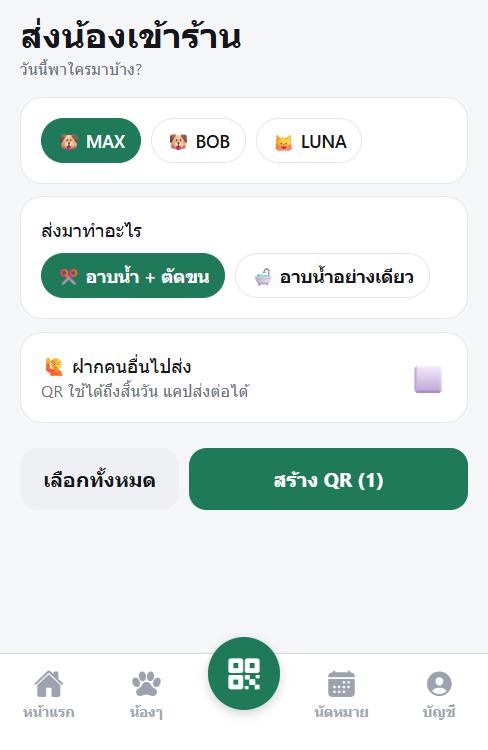
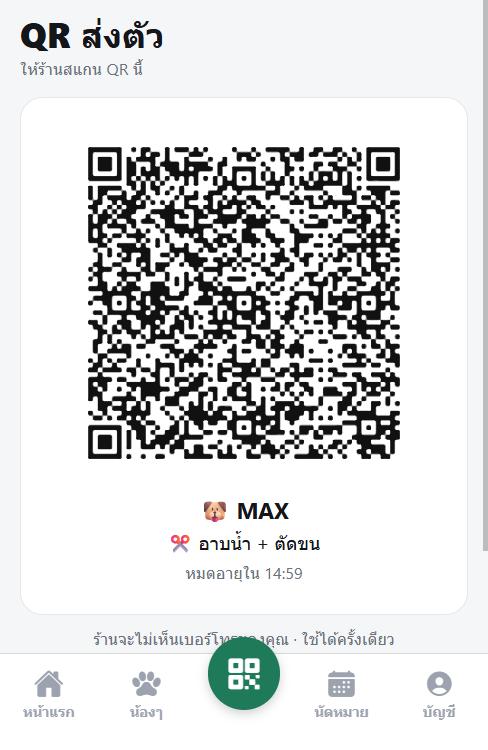
- Tap the QR button in the middle of the bottom bar → “who did you bring today?” → choose pets (several is fine)
- Pick the service: bath + groom / bath only / day care / boarding
- Show the QR to the shop to scan — done
💡 Someone else dropping off? Send them the QR · been to the shop before without the app? Ask the shop to “claim” and scan your QR — the old history joins yours
 123
 1
3. Live status — no need to call
- Home shows waiting / bathing / grooming / ready, with notifications
- Forgot to tell the groomer? Open the pet and type or say “face a bit shorter please” — it goes to the groomer on your pet, with a ✓ when they've seen it
- See photos of the result and past visits on the pet's page
4. The shop asks for extra work
If the shop finds something extra that costs more, you get a notification to tap ตกลง ทำได้เลย (OK, go ahead) or ไม่ต้อง (no thanks) — you're never charged for extra work you didn't agree to
5. Pay
- When your pet is ready tap 💳 จ่ายเงิน (pay) — several pets become one bill
- Scan the PromptPay QR in your banking app, then tap 🧾 แนบสลิป (attach slip)
- When the shop confirms the money arrived you're notified — come and pick up
💡 Want to tell the shop something (praise or a complaint) after pick-up? Leave feedback — the shop sees it and can improve
6. Book the next visit
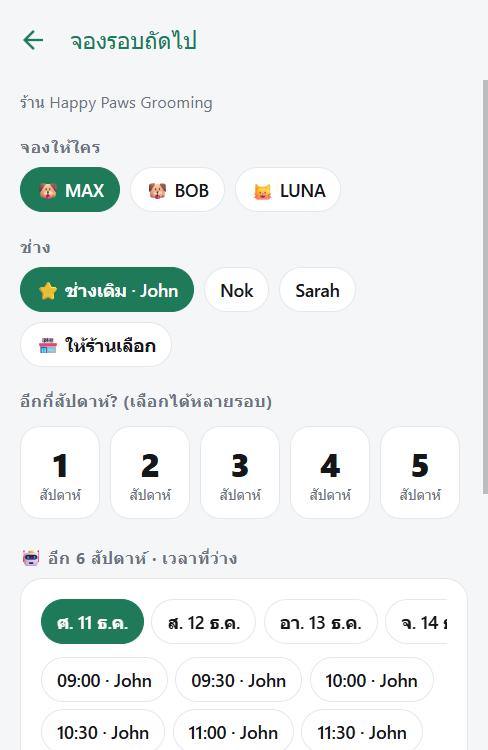
- นัดหมาย (Bookings) tab → + จองคิวใหม่ (new booking), or “จองเลย” (book now) after pick-up — choose pets, groomer and how many weeks out; the app suggests times the shop is free
- Once the shop confirms it shows “ยืนยันแล้ว” (confirmed) · can't make it? 🕑 ขอเลื่อน (reschedule) or ยกเลิกนัด (cancel)
- Set the usual bath interval on the pet's page and the app reminds you when it's due
 1234
7. Chat with the shop
On Home tap 💬 แชทกับร้าน (chat with shop) — ask about any pet and it reaches whoever is looking after that pet
8. Keep your data
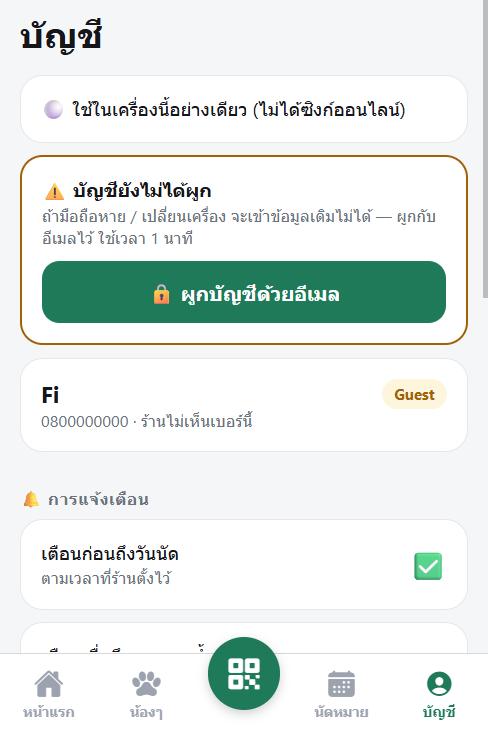
บัญชี (Account) tab → 🔒 ผูกบัญชีด้วยอีเมล (link an email) · new phone: open the app → “🔑 มีบัญชีอยู่แล้ว — เข้าสู่ระบบ” (sign in) and your pets and history come back · you can delete your account in the Account tab
 1
FAQ
Can the shop see customers' phone numbers?
No. Shops talk to customers only through in-app chat and notifications.
Can customers see the warnings the shop writes?
No. Warnings, groomers' cut notes and internal comments stay inside the shop (marked 🔒).
What if the AI mishears?
The app always shows a summary before saving — tap ✗ — and notes can be edited or deleted later. Money and booking changes always ask you to confirm.
Does it work offline?
Yes. Data is kept on the phone first and syncs when you're back online (talking to the AI needs internet).
New phone or reinstalled — is my data gone?
Not if you linked an email — sign in with the same email on the new phone and everything comes back.
A problem, or an idea for a feature?
Email support@pawbell.app